You check the dashboard every morning to see whether a number crossed a line. Overdue invoices, open cases, inventory below a minimum. Power BI data alerts do that checking for you and send a notice when the number moves past a limit you set. This guide shows how to set one up, what it can and cannot do, and what to check when it stays silent.
TL;DR
- Classic data alerts are set on dashboard tiles, and only on gauges, KPIs and cards that show numeric data.
- Native alerts are personal. They notify only the person who created them. To reach a team, you add Power Automate.
- An alert fires only when the data refreshes. A stale dataset means a silent alert.
- Reports have their own alert option through Fabric Activator, which needs Fabric capacity.
- Most alert problems start in the data layer, not in the alert settings.
Turn your data into decisions
We build Tableau and Power BI dashboards and the data models behind them. Book a free 30-minute analytics assessment and we'll map the fastest path for your team.
Book a Free Analytics AssessmentOn this page
- What a Power BI data alert does
- Set a data alert on a dashboard tile
- Where the notifications show up
- Requirements and limits
- Alert other people with Power Automate
- Alerts on reports with Fabric Activator
- Why your alert does not fire
- Subscriptions or alerts
- Design alerts people keep using
- Need alerts your whole team can rely on?
- Author Perspective
- FAQ
- Sources
What a Power BI data alert does
A data alert watches one number and tells you when it goes above or below a limit. You set the limit. Power BI checks the number when the data refreshes. If the limit is crossed, you get a notice.
The Microsoft documentation on data alerts says alerts work on tiles pinned from report visuals. They work only on gauges, KPIs and cards. A bar chart or a table cannot carry a classic alert.
That shapes how you design a dashboard. If a number matters enough to alert on, give it its own card or KPI tile. Do not bury it in a chart.
Dashboard alerts and report alerts
Power BI has two alert paths. They are easy to mix up.
| Dashboard data alerts | Report alerts (Fabric Activator) | |
|---|---|---|
| Where you set them | On a dashboard tile | On a visual in a report |
| Supported visuals | Gauges, KPIs, cards | Many types, including column, bar, line, area, pie, gauge, card and KPI |
| Who gets notified | The person who set the alert | Email or Teams, as you choose |
| Capacity needed | Pro license, or Premium capacity | Workspace with Fabric capacity |
| Power BI Desktop | Not available | Not available |
The visual types for Activator come from the Activator limitations page. The Pro and Premium rule comes from Microsoft’s page on interacting with reports and dashboards.
If your numbers live on a dashboard, use the classic alert. If they live only in a report, look at Activator.
Set a data alert on a dashboard tile
You need the Power BI service in a browser. Alerts cannot be created in Power BI Desktop. The steps below follow the official setup guide.
- Open a dashboard in the Power BI service.
- Select the ellipsis (…) on a card, KPI or gauge tile.
- Choose Manage alerts.
- Select + Add alert rule.
- Turn on Active.
- Give the alert a clear title.
- Enter the alert details: the condition (above or below) and the threshold value.
- Choose whether to also receive an email.
- Select Save and close.
Use titles that say what happened. “Overdue invoices above 40” tells you more than “Alert 1.” When you have ten alerts, the title is what you read first.
Pick a threshold worth acting on
A threshold should mark the point where someone does something. If nobody acts when it fires, it is noise.
Here are examples of numbers that suit a card or KPI tile:
- Finance: count of invoices more than 60 days past due, alert when it rises above your collections team’s limit.
- Operations: units on hand for a critical part, alert when it falls below the reorder point.
- Program teams: open service requests older than the target response time.
- Nonprofits: weekly donations received, alert when the total falls below the weekly goal.
The limits are yours. We do not publish benchmarks here, because the right limit depends on your process.
How often you get notified
You choose a frequency of at most once an hour or at most once a day. According to the Microsoft guide, when the data reaches the threshold, Power BI checks the time since the last alert. If it is past your chosen interval, you get a notice in the Notification center, and optionally an email. Each alert has a direct link to the data.
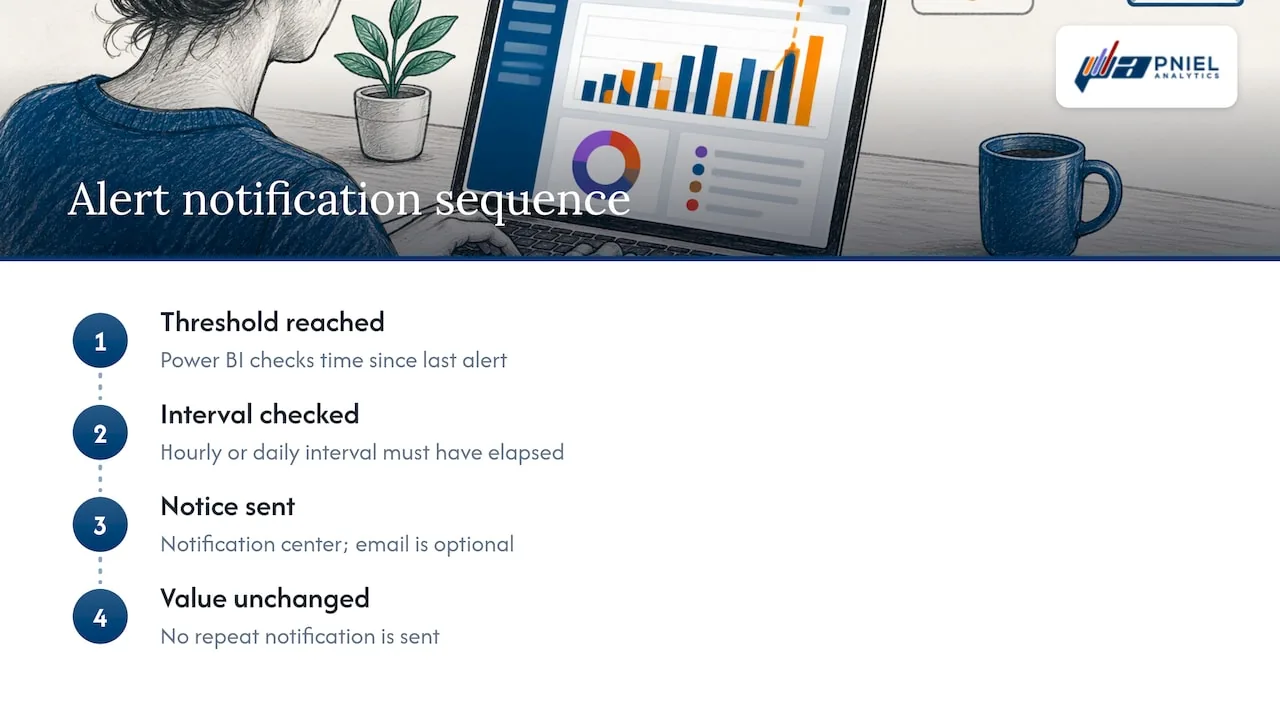
Alerts are sent only if the data changes. You do not get repeats for a value that stays the same.
Where the notifications show up
People search for Power BI push notifications. The answer is the mobile apps and the service.
Data alerts are synchronized across platforms. You can set and view them in the Power BI mobile apps and in the Power BI service. They are not available in Power BI Desktop. This is stated on the same Microsoft page.
In practice, set the alert in the browser, then install the mobile app on your phone. The alert appears in the app and in the Notification center. Turn on the email option if you also want a message in your inbox.
If your team watches numbers on a shared screen, alerts pair well with a wall display. Alerts cover the moments when nobody is looking at the screen.
Requirements and limits
Check these before you build a plan around alerts.
- Visual type. Gauges, KPIs and cards only.
- Data type. Numeric values only.
- Refresh. Alerts work only on refreshed data.
- Quantity. You can create up to 250 alerts across all your models.
- License. At least Power BI Pro, unless the dashboard sits in a Premium capacity.
- Security. Alerts respect row-level security. They evaluate only data the user is authorized to see.
The first four come from the alerts guide. The license and security points come from the reading view documentation.
The security point matters for shared dashboards. Two people can set the same alert and see different results, because each person’s roles filter the data. If you use roles, read our guide to Power BI row-level security and test each role before you trust an alert.
Alert other people with Power Automate
A native alert tells one person. That is the most common surprise. A finance director sets an alert, and the controller never hears about it.
Power Automate fixes this. The flow trigger is named “Power BI - When a data driven alert is triggered.” Per the Power Automate integration page, a flow can send email to any audience or create Outlook events when the alert fires.
The flow starts after the alert triggers, so you still create the alert on the dashboard tile first. Then you build the flow around it.
Common actions after the trigger:
- Email a distribution group with the current value.
- Post a message in a Teams channel.
- Create a task in Planner.
- Log the event to a SharePoint list, so you keep a record of when thresholds were crossed.
The Teams, Planner and SharePoint options are described in Wicked Smart Data’s guide to enterprise alerting, which also confirms that native alerts notify only their creator.
Keep one owner for each flow. If the person who built it leaves, the flow can stop working. Name an owner in your team’s documentation.
Alerts on reports with Fabric Activator
Some teams work in reports, not dashboards. Fabric Activator handles this case.
The process, per Microsoft’s page on setting alerts on Power BI reports:
- Open the report and select Set alert from the visual’s context menu or the report toolbar.
- Choose the measure, the condition and the threshold.
- Choose email or Teams.
- Save the alert to a workspace with a Fabric capacity license.
Microsoft labeled this feature as a public preview when that page was written. Check the current status on the page before you plan a rollout.
Activator has its own limits. Each item supports up to 500 rules. Email notifications are capped at 500 messages per activator item per hour and 30 messages per rule per recipient per hour. These figures are on the Activator limitations page.
Activator can also watch a table visual and notify you when a new row appears. The rule can trigger email, Teams, a Fabric item or a Power Automate action, as described in Microsoft’s guide to creating Activator rules. That suits exception lists, such as new failed transactions or new unapproved expenses.
Why your alert does not fire
When an alert stays quiet, work down this list. The first four items are named in the official guide.
- The data is static. If the dataset never refreshes, the value never changes, and no alert fires. Check the refresh history.
- The tile uses a date or time measure. Alerts need a numeric value. Use a number, such as days elapsed.
- The data type is not numeric. A number stored as text will not work. Fix the type at the source.
- The value did not change. Alerts are sent only when the data changes.
- The alert is switched off. Open Manage alerts and confirm Active is on.
- Row-level security hides the data. The alert sees only what your role sees.
- Your license changed. Alerts need Pro or a Premium capacity.
The most common cause is the first one. A dashboard that refreshes once a day cannot alert you within the hour. Match the refresh schedule to the speed of the decision.
Fix the data layer first
Many alert complaints are really data complaints. The tile shows a number that jumps, or that is wrong, so the alert fires at the wrong time or never.
We work SQL-first. When a dashboard is slow or wrong, we fix it at the data layer before we redesign any visual. For alerts, that means building the alerted number in SQL so it is stable and has one definition.
A simple pattern is a view that returns one row per metric:
CREATE VIEW kpi_overdue_invoices AS
SELECT COUNT(*) AS overdue_count
FROM invoices
WHERE status = 'OPEN'
  AND due_date < CURRENT_DATE - INTERVAL '60 days';
The Power BI card reads overdue_count. The number is numeric. The rule is written once. Anyone who asks “what counts as overdue?” gets one answer.
Slow refreshes also delay alerts. If a large table takes too long to load, look at incremental refresh in Power BI. It loads only new and changed data, so refreshes finish sooner.
Subscriptions or alerts
Teams often ask which one to use. They do different jobs.
- Subscriptions are scheduled. They send a report snapshot at a set time, such as Monday at 7 a.m.
- Alerts are event-driven. They send a notice when a number crosses a limit.
Use a subscription for routine review. Use an alert for exceptions that need action now. A weekly leadership summary is a subscription. A cash balance below the minimum is an alert.
Design alerts people keep using
Alerts lose value fast when they fire too often. People mute them. Then the one important alert gets missed.
Follow a few rules:
- Alert on few numbers. Five good alerts beat fifty noisy ones.
- Write a threshold with a named action. Decide who does what when it fires.
- Review alerts each quarter. Remove those nobody acts on.
- Keep one source of truth for each metric, so two alerts never disagree.
If you want to catch unusual values rather than fixed limits, a fixed threshold may not be enough. See our guide to building an anomaly detection dashboard in Power BI or Tableau.
Finance teams can start small. Our minimal Power BI dashboard for FP&A shows which few numbers belong on the first page. Those are the numbers worth alerting on.
Need alerts your whole team can rely on?
Pniel Analytics builds Power BI and Tableau dashboards, plus the SQL data pipelines behind them. Our Power BI consulting work covers dashboard design, refresh setup and alert-ready metrics. Our engagements typically run 4 to 6 weeks. The same team builds and maintains the work.
If you are not sure where your reporting stands, start with our free analytics assessment. It is a direct way to find out which numbers deserve an alert and what must change in the data first.
Author Perspective
Alerts fail more often because of the data than because of the settings. A team sets an alert on a tile, the tile pulls from a messy dataset, and the alert fires on a number nobody trusts. After two false alarms, people stop reading them.
My recommendation is to define the metric in SQL first. Then pin it to a dashboard as a single card. Then set the alert. In that order, the alert is only as hard as clicking a few options.
I also recommend naming one owner per alert. That person decides the threshold, reviews it each quarter, and removes it when it stops being useful. Alerts with no owner turn into noise.
Finally, plan for people beyond yourself. Native alerts reach only their creator. If a team needs to act, build the Power Automate flow on day one, not after the first missed notice.
Frederick Soh
FAQ
Can I set a data alert in Power BI Desktop?
No. Data alerts are not available in Power BI Desktop. You create them in the Power BI service in a browser, then view them in the service or the mobile apps.
Can a Power BI alert notify my whole team?
Not on its own. A native alert notifies only the person who created it. To reach others, use the Power Automate trigger for data driven alerts and send email to a group or post in a Teams channel.
Why did my alert not fire when the number crossed the limit?
The most likely cause is that the dataset did not refresh. Alerts evaluate data only after a refresh. Also check that the tile is a card, KPI or gauge, that the value is numeric, and that the alert is active.
Do I need a Pro license for alerts?
Yes, at least Pro, unless the dashboard is in a Premium capacity. Alerts for reports through Fabric Activator also need a workspace with Fabric capacity.
Do data alerts respect row-level security?
Yes. Alerts evaluate only the data the user is authorized to view. Two users with different roles can see different alert results from the same tile.
Sources
- Set data alerts in the Power BI service (Microsoft Learn)
- Interact with reports and dashboards in the Power BI service (Microsoft Learn)
- Integrate Power BI data alerts with Power Automate (Microsoft Learn)
- Set alerts on Power BI reports (Microsoft Learn)
- Activator limitations (Microsoft Learn)
- Create Activator rules (Microsoft Learn)
- Implementing Power BI report subscriptions and data-driven alerts at enterprise scale (Wicked Smart Data)
Related insights
- Power BI Incremental Refresh: Setup, Limits & Pitfalls
- Power BI Forecasting: How to Build and Check a Forecast
- Anomaly Detection Dashboard: Build One in Power BI or
- Cut Power BI Latency: 5 Decision Questions to Pick Star or Snowflake Schema
This article is for general informational purposes and reflects Pniel Analytics’ experience delivering BI and analytics work. It is not legal, financial, or compliance advice. For guidance specific to your data environment, contact us at fsoh@pnielanalytics.com.