
Your pipeline report in Salesforce says one number. Your finance dashboard says another. Leaders stop trusting both, and the weekly meeting turns into an argument about data. Connecting Tableau to Salesforce takes minutes. Getting numbers that match your finance system, refresh on time and respect user permissions takes planning at the data layer.
This guide covers the connection steps, the refresh rules that surprise most teams, how to join Salesforce with SQL Server, and how to secure it. At Pniel Analytics, we build Tableau and Power BI work on a SQL-first approach, and that shapes the advice below.
TL;DR
- Tableau connects to Salesforce through a built-in connector. It uses OAuth sign-in and works as an extract, not a live query.
- Salesforce data refreshes on a schedule. Plan reporting around that schedule instead of promising “real time”.
- SQL Server supports live connections and extracts, so a Salesforce plus SQL Server dashboard mixes two refresh models. Design for that from the start.
- Slow or wrong dashboards are usually a data problem. We fix them at the data layer before we redesign any visuals.
- Security is set in the connection and the data model. Decide who sees which records before you publish.
Turn your data into decisions
We build Tableau and Power BI dashboards and the data models behind them. Book a free 30-minute analytics assessment and we'll map the fastest path for your team.
Book a Free Analytics AssessmentOn this page
Three ways to bring Salesforce data into Tableau
Before you connect anything, pick the route that fits your question. Salesforce now offers more than one.
| Route | Best for | Notes |
|---|---|---|
| Salesforce connector | Sales Cloud, Service Cloud and custom object reporting | Extract-based. Covered step by step below. |
| Data Cloud connector (now Data 360) | Organizations that already unify customer data in Data 360 | Queries Data 360 objects. Accelerated queries speed up results. |
| Tableau Next | Teams that want analytics hosted on the Salesforce platform | A newer deployment option, separate from classic Tableau Desktop work. |
Salesforce’s own Trailhead training says you can connect to Data 360 objects, or, if the data is not in Data 360, connect directly to Sales Cloud, Service Cloud or Marketing Cloud Engagement data. It also notes Tableau has 100+ connectors for data outside Salesforce, which matters when finance, billing or operations data lives elsewhere.
The Data Cloud connector shows object labels instead of API names. Tableau’s documentation states it was released for Tableau Desktop and Prep in 2023.2. The same page says Salesforce rebranded Data Cloud to Data 360 on October 14, 2025. It also says the older CDP connector was removed from Tableau Server 2025.1 and later. If you still have dashboards on the old connector, plan a move.
For most mid-size companies, nonprofits and agencies, the standard Salesforce connector is the starting point. The rest of this guide focuses on it.
How to connect Tableau to Salesforce
The steps below follow Tableau’s Salesforce CRM documentation. Each step lists where it tends to go wrong.
- Open the connector. In Tableau, go to Connect, then To a Server, then More, and select Salesforce. Where it goes wrong: Using a personal Salesforce login. When that person leaves, every dashboard breaks. Use a dedicated integration user with a defined role.
- Check the instance URL. The default is login.salesforce.com. Sandbox and custom domains use a different address. Where it goes wrong: Building against a sandbox and publishing against production, or the reverse. Test numbers then do not match live numbers.
- Sign in with OAuth. Enter your Salesforce credentials and select Allow in the Allow Access dialog. Tableau notes the credentials must have API access. Where it goes wrong: Salesforce profiles without API access. The sign-in succeeds but the connection fails. Ask your Salesforce admin to enable API access first.
- Choose your tables. On the data source page, pick Standard Connections, which are predefined queries for commonly used objects, or Tables, which include any custom objects your company created. Where it goes wrong: Pulling every object. Select only what the dashboard needs. Smaller extracts refresh faster and are easier to audit.
- Create the extract. The connector reads Salesforce objects through force.com APIs (OAuth, REST, BULK and Replication SOAP). With this connector, Tableau Desktop, Server and Cloud are limited to extracts. Where it goes wrong: Expecting live data. An extract is a saved copy, current only as of its last refresh.
A typical operations example: connect the Opportunity and Account objects, then build a view of open pipeline by stage and owner. Check the stage totals against a Salesforce report before you share it. If they differ, fix the join or filter first. Do not adjust the chart.
Refresh rules that decide how fresh your numbers are
Executives often ask for real-time Salesforce dashboards. The connector does not work that way, so set expectations early.
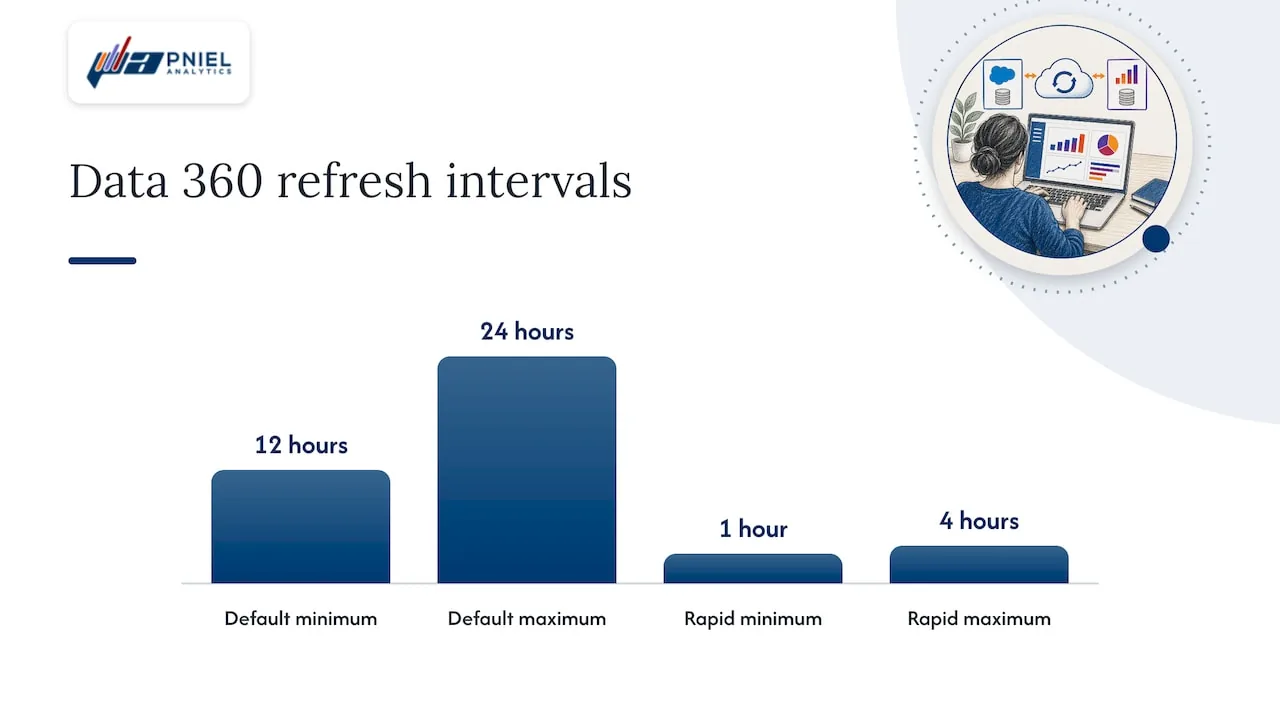
After the first extract, you can run a full or incremental refresh from Data, then your data source, then Extract, then Refresh. Tableau states that an incremental refresh includes objects added or changed since the last refresh, limited to the previous 30 days. It does not support Custom SQL.
On Tableau Cloud, Salesforce is extract-only, with extracts scheduled directly on Tableau Cloud. To keep data fresh, you must embed credentials in the data connection and add the extract to a refresh schedule. Two details from that page save support calls:
- If Salesforce access comes from an IP address outside your organization’s trusted IP list, a security token must be appended to the password.
- Expired tokens trigger alerts to workbook authors and site administrators. You renew them by editing the connection on the server.
Put a named owner on that alert. Many “the dashboard is stale” tickets are expired credentials nobody saw.
A practical rule: match the schedule to the decision. A weekly sales forecast review needs a nightly refresh. A daily call-center queue view may need several refreshes a day. Neither needs a live connection.
How to connect Tableau to SQL Server
Most Salesforce reporting needs a second source. Billing, general ledger, grants, inventory and HR data usually sit in SQL Server. The steps follow Tableau’s SQL Server documentation.
- Gather what you need. You need the server name, with an optional port in the form ExampleServer, 8055. You may also need a database name and your sign-in method: Windows Authentication, or a user name and password.
- Select Microsoft SQL Server in the Connect pane. If Tableau asks for a driver, install the Microsoft SQL Server driver on that computer. Install it on the machine that runs refreshes as well.
- Enter the server and database, then choose how to sign in. Tableau says a user name and password is required if the server is password-protected and you are not in a Kerberos environment.
- Check Require SSL if your server uses SSL.
- Set optional items. You can set a read-uncommitted isolation level or Initial SQL.
- Select Sign In, then drag a table or stored procedure onto the canvas.
Where it goes wrong: connecting straight to transaction tables. Dashboards then run heavy joins against a system that also runs your business. A better pattern is a reporting view or a dimensional model, built once in SQL, that holds clean fields such as fiscal period, department and customer key. This is what we mean by SQL-first. The dashboard reads a clean table, and the logic lives in one place you can test.
SQL Server supports live connections and extracts. For on-premises servers on Tableau Cloud, Tableau recommends Tableau Bridge, a client that lets Tableau Cloud reach data behind your firewall.
Combine Salesforce and SQL Server in one dashboard
The most useful reports join the two. Examples: closed-won revenue from Salesforce against invoiced revenue from the finance database, or grant pipeline in Salesforce against funds received in the accounting system.
Three things decide whether this works.
A shared key. Salesforce Account IDs rarely exist in finance systems. Add a mapping table in SQL that links the Salesforce Account ID to the customer number in billing. Without it, you will match on names, and names differ (“Acme Inc.” and “ACME, Incorporated”).
Matching grain. Salesforce opportunities are one row per deal. Invoices are one row per line. Joining them directly multiplies revenue. Aggregate each side to the same level, such as account by month, before you join.
Mixed refresh rules. When you publish a data source with several connections, Tableau requires a refresh schedule for each extract connection. If any connection needs Tableau Bridge, all connections in that data source must refresh through Bridge. Tableau also states that refresh schedules for database connections require embedded credentials. A single on-premises SQL Server source therefore changes how the whole combined source refreshes.
Before the build, decide which system owns which number and who maintains each connection.
Our Tableau vs Power BI comparison helps if your team is also weighing Power BI for this work. We cover the Power BI side of the same setup in connecting Power BI to Salesforce.
Security and permissions
Salesforce enforces record visibility inside Salesforce. Tableau sits outside it. A dashboard built on an integration user that sees all opportunities will show all opportunities to everyone who opens it, unless you add controls.
Two points from Tableau and Salesforce documentation help here:
- Trailhead describes Tableau as “data space aware” for Data 360. The data you can see is based on the OAuth login used in Data 360. Publishing data sources also centralizes credentials and data management.
- For SQL sources, Tableau’s Initial SQL feature can set impersonation with the TableauServerUser and TableauServerUserFull parameters, and support row-level security where the source allows it. Tableau states that these parameters create a dedicated, non-shareable connection. That improves security and can slow performance. Administrators can disable Initial SQL entirely with a server setting.
For sensitive work such as patient outcomes, donor records or program data in a government agency, define the access rules before the first build. Write down which role sees which region, program or account. Then implement them in the data model, not in hidden filters on a worksheet. Our guide to Tableau row-level security methods walks through the options.
If you plan to embed dashboards in a portal, see our notes on authentication patterns for embedded Tableau.
When the dashboard is slow or wrong
Teams that already have a Tableau and Salesforce setup often come to us with one of two complaints. The dashboard is slow, or the numbers disagree with another report.
The cause is usually in the data, not in the charts. Typical culprits:
- An extract that pulls every Salesforce field when the dashboard uses ten.
- Calculated fields in Tableau that repeat logic already written elsewhere, in slightly different form.
- Joins between systems at mismatched grain, which inflate totals.
- Date logic that differs between Salesforce (calendar) and finance (fiscal).
So we start at the data layer. We check the extract, the SQL views and the joins first. We redesign visuals only after the numbers tie out to a source of record. Redesigning charts on top of bad data gives you a nicer-looking wrong answer.
As a check, pick three metrics leaders quote often, such as pipeline by stage, bookings by month and open cases by age. Reconcile each to its source report. Any gap points to a join, a filter or a refresh problem you can fix once.
How Pniel Analytics can help
Pniel Analytics is a Tableau and Power BI consulting firm based in Newark, Delaware, serving clients across the US. Tableau is our core platform. We build the SQL data pipelines behind the dashboards, so the Salesforce and SQL Server connections described above are part of the work, not an afterthought.
Our engagements typically run 4 to 6 weeks. The same team builds and maintains the work. If you need a Salesforce connection, a combined Salesforce and finance view, or a fix for a dashboard nobody trusts, see our Tableau consulting services. We are built to serve federal, state and local agencies. We are registered for government work on SAM.gov. You can book a free assessment from our home page.
Perspective
Most Tableau and Salesforce projects stall for the same reason. Teams treat the connection as the project. The connection is the easy hour. The hard weeks are agreeing on what a “customer”, a “booking” or an “active program” means across systems.
My recommendation is to write those definitions down first, as SQL. Put them in views that both Tableau and your finance team can read. Then connect Tableau to those views and to the Salesforce objects that feed them. When a number is questioned, you can point to one query.
I also recommend setting the refresh schedule with the decision-maker in the room. Ask how fresh the number needs to be, then build to that answer. A nightly extract that everyone trusts beats a faster one that nobody can explain.
We keep the same team on the build and the maintenance. The person who wrote the join is the person who fixes it when a Salesforce field changes.
Frederick Soh
FAQ
Does Tableau have a native Salesforce connector?
Yes. In Tableau, go to Connect, then To a Server, then More, and select Salesforce. You sign in with OAuth. The connector reads Salesforce objects through force.com APIs and supports extracts only.
Can Tableau show Salesforce data in real time?
Not through the standard connector, which is extract-only. You schedule refreshes, and Tableau Cloud runs Salesforce extract schedules directly. For faster refresh needs, look at the Data 360 connector, which supports live queries with accelerated queries. Confirm your Salesforce edition and setup first.
Can I join Salesforce data with SQL Server data?
Yes. Add both as connections in one data source, or blend them across data sources. You need a shared key, such as a mapping of Salesforce Account ID to customer number, and matching grain on both sides. Refresh schedules must cover each connection.
What do I need to connect Tableau to SQL Server?
You need the server name, a database name if required, and a sign-in method: Windows Authentication, or a user name and password. Check Require SSL if the server uses it. Then drag a table or stored procedure onto the canvas.
What happened to the older Salesforce Data Cloud connector?
Tableau’s documentation says the older CDP connector was deprecated in 2023.3 and removed from Tableau Server 2025.1 and later. The current Data Cloud connector replaced it. Salesforce renamed Data Cloud to Data 360 in October 2025.
Sources
- Salesforce CRM - Tableau
- Microsoft SQL Server - Tableau
- Tableau Cloud: Keep Data Fresh
- Refresh Data Using Saved Credentials
- Schedule Extract Refreshes as You Publish a Workbook
- Connect Tableau Server to Salesforce Data Cloud
- Run Initial SQL - Tableau
- Leverage Tableau with Salesforce Data for Enhanced Insights
Related insights
- Tableau vs Power BI: Which Is Right for Your Business in 2026?
- Ship Trustworthy Tableau Executive Dashboards in Weeks: 4 Templates
This article is for general informational purposes and reflects Pniel Analytics’ experience delivering BI and analytics work. It is not legal, financial, or compliance advice. For guidance specific to your data environment, contact us at fsoh@pnielanalytics.com.