
Row level security (RLS) in Tableau controls which rows of data each person sees in the same dashboard. A regional manager sees her region. A finance lead sees every region. Nobody has to build a separate workbook for each group. Tableau gives you three ways to do it, and the right one depends on how many workbooks you have, who authors them and which edition you license.
This guide explains each method, shows how to set one up, lists the mistakes that break it, and covers how data alerts and user filters fit in.
TL;DR
- RLS limits the rows a user sees. Permissions limit which content a user can open. You need both.
- Tableau has three main methods: manual user filters, dynamic filters, and data policies on virtual connections. Data policies are the most central and the hardest to bypass, but they need Data Management.
- Publish the data source separately from the workbook. An embedded data source can let someone with web edit or download rights remove the filter.
- Keep the entitlement table small, denormalized and hidden. Slow RLS is usually a join problem.
- Test every rule as a real non-admin user before launch, and again after any migration.
Turn your data into decisions
We build Tableau and Power BI dashboards and the data models behind them. Book a free 30-minute analytics assessment and we'll map the fastest path for your team.
Book a Free Analytics AssessmentOn this page
- What row level security does, and what it does not
- The three methods compared
- How to set up dynamic RLS step by step
- Mistakes that break row level security
- User filters in Tableau: when each is the right one
- Data alerts and RLS
- Our view: start with the rule, not the tool
- Who needs this most
- Get help with your Tableau security model
- FAQ
- Sources
What row level security does, and what it does not
Tableau separates RLS from permissions. Permissions decide whether a person can open a workbook, a dashboard or a feature. RLS decides what data appears once they are inside. Two users can open the same dashboard and see different numbers because their entitlements differ, such as region or role.
Here are typical cases:
- Regional sales staff see only their own region.
- Sales managers see their team and nobody else’s.
- A hospital department sees its own patient volumes.
- A school principal sees only their building’s attendance.
- A fundraising lead sees gifts for one campaign, while the board sees all of them.
RLS is not a replacement for good access control on the content. If a person can download the underlying data or edit the view on the web, filters that rely on the workbook can be at risk. We cover that below.
The three methods compared
Tableau’s own overview of row level security options names three primary approaches. Here is how they compare in practice.
| Method | How it works | Best for | Main weakness |
|---|---|---|---|
| Manual user filters | You map users or groups to values by hand, inside each workbook | One small workbook, a handful of users | Must be repeated per workbook and kept up to date by hand |
| Dynamic filters | A calculation compares a security field in the data to USERNAME() or group membership | Several workbooks sharing one data source, with an entitlement table | Depends on correct publishing and permissions |
| Data policies on virtual connections | A policy at the connection level filters every query | Larger teams that need one central rule | Requires Data Management |
A fourth path exists when your database already enforces security. Tableau describes how to use RLS you have already built in the database. If your IT team already maintains those rules, reusing them avoids a second copy of the logic.
Manual user filters
This is the simplest method. You open the data source, choose Create User Filter, and tick which users or groups can see which values. It works well when you have one workbook and a short list of people.
The cost shows up later. Every new workbook repeats the setup. When a manager changes territory, someone has to edit each workbook. Most teams outgrow this method within a year.
Dynamic filters with USERNAME()
A dynamic filter is a calculated field. It compares the signed-in user to a field in your data. A common pattern uses an entitlement table with two columns: the user’s name and the value they may see. The calculation checks whether the row’s value matches that user’s entry, and the filter keeps only the matching rows.
Group-based versions use ISMEMBEROF, which checks whether the user belongs to a named Tableau group. This walkthrough of USERNAME() and ISMEMBEROF shows the pattern with a sample category field.
This is the method most of our clients start with. It scales to many workbooks, because the rule lives in the published data source. It also keeps the entitlement logic in one table that the business can maintain.
Data policies on virtual connections
Virtual connections give you one central access point to your data. A data policy is attached to that connection and filters the data for every user who queries it. Tableau’s guidance is to use data policies for most situations where they are available, because the policy is enforced on the server for every query, whatever the workbook author does. You can read the details in the virtual connections overview.
That is the strongest argument for this method. It takes the safety of RLS out of each author’s hands. The tradeoff is licensing: virtual connections and data policies need Data Management. If you do not have it, a well built dynamic filter is still a sound choice.
How to set up dynamic RLS step by step
This is the pattern we use most. Adjust it to your data.
- Decide the rule in plain words. Write it down first. For example: each sales rep sees accounts in their territory, and each regional director sees all territories in their region.
- Build the entitlement table. One row per user and permitted value. Use the same username format Tableau Server or Cloud uses, so the match works.
- Join or relate it to your fact table. Keep the join clean. A many to many mapping can duplicate rows and inflate your totals.
- Create the filter calculation. Compare the user from USERNAME() to the entitlement field. For group rules, use ISMEMBEROF.
- Apply it as a data source filter. A data source filter applies to everything built on that source. A worksheet filter applies only to one sheet.
- Publish the data source separately. Do not embed it in a workbook.
- Lock down permissions. Remove download and web edit rights where users should not see the unfiltered data.
- Test as real users. Sign in as, or impersonate, one person from each role. Compare totals with a known answer.
Step 6 matters more than it looks. Tableau warns that if the data source is embedded in a workbook, a user with web edit or download permission may be able to remove the filter. At that point your security does not exist.
Mistakes that break row level security
Embedded data sources
Covered above, and it is the most common one. Publish separately, then set permissions so people cannot download or web edit the content that carries the filter.
Testing only as an administrator
An admin or author often sees all the data. A dashboard can look correct in Desktop and still be wrong for users. One question in Tableau’s community forums shows this exact confusion: an author with full access sees every parameter value and assumes the filter is broken. Test with accounts that have no special rights.
Leaving the entitlement table visible
Organizations often use an entitlement table to map users to values. Tableau advises that you hide this table from view so it cannot be used in reports, while it still works for the security filter. A visible table tells anyone who builds a view who can see what.
Ignoring performance
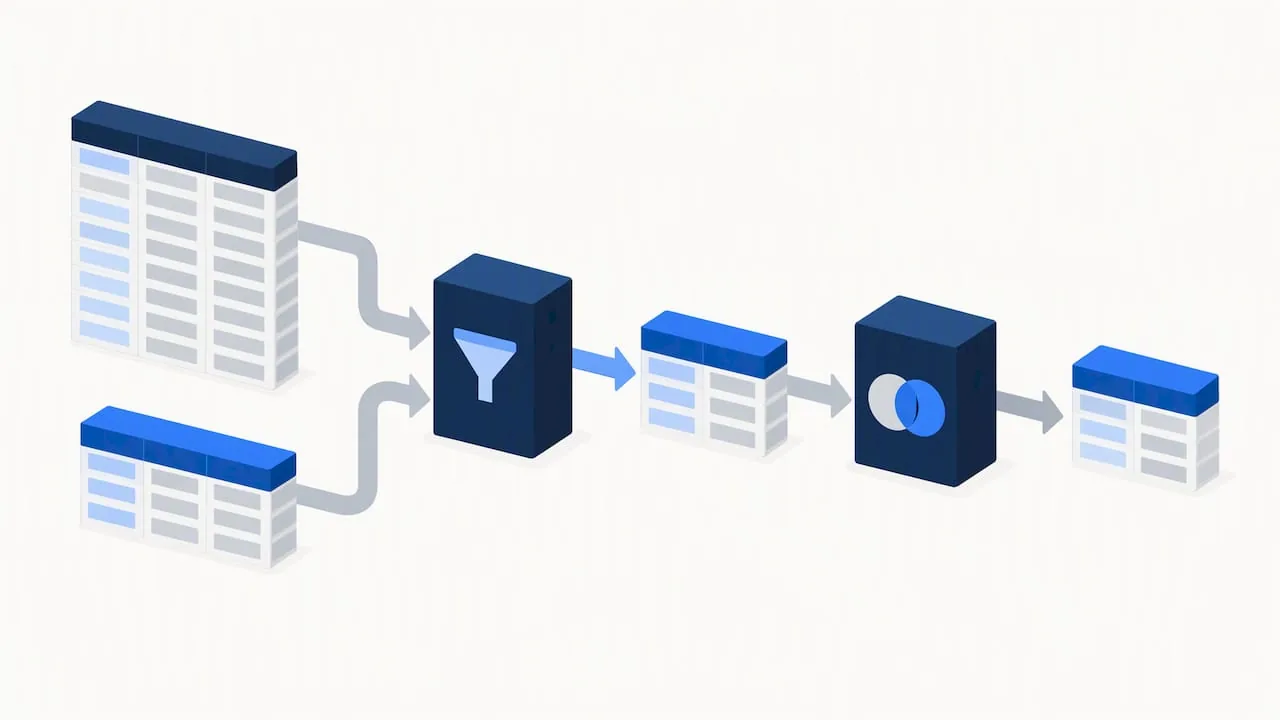
Slow RLS dashboards are common. Tableau’s best practices say joins are expensive, so denormalize your entitlement tables and make sure filtering happens before joining, which keeps the number of processed rows down. If a dashboard loads slowly only for certain users, look at their entitlement rows first. A user with thousands of mapped values can be much slower than one with five.
Forgetting the migration
If you move from Tableau Server to Tableau Cloud, or change identity providers, usernames and group names can change. Tableau notes that this can break security filters unless you update and test them. The migration guidance on permissions and content access explains how access is determined after users are added. Plan an RLS retest as its own task in the migration plan. If you are weighing a bigger platform change, our Tableau to Power BI migration guide covers how security rules are rebuilt on the other side.
Dirty entitlement data
A misspelled region, a trailing space or a duplicate username silently hides rows or exposes them. Validate the table before each load. Simple checks work: count distinct users, look for blank values, and confirm every value in the entitlement table exists in the fact table. Teams that already run automated checks on structured data may find data quality tools for engineers a useful starting point for building those tests.
User filters in Tableau: when each is the right one
People often search for “user filters” as if it were a separate topic. It is the manual method above. Use it when:
- You have one workbook.
- The user list is short and rarely changes.
- No one on the team can maintain an entitlement table.
Move to dynamic filters or data policies when you add a second workbook, or when the list of users changes monthly. The setup time you save with manual filters comes back as maintenance.
Data alerts and RLS
RLS controls who sees what. Alerts tell people when something crosses a line. Teams usually want both, so here is how alerts work.
Tableau’s data-driven alerts notify people when data reaches a threshold you set. They run on Tableau Cloud or Tableau Server. Notifications can arrive as email, as a notification in your Tableau site, or in Slack through the Tableau for Slack app. You can set them on dashboards and views, but not on story points.
A few practical points from the same documentation:
- You create an alert from a continuous numeric axis. Gantt charts and maps do not support it, and neither do binned or discrete numeric axes.
- On time based charts, use relative date filters so people receive alerts as new data arrives.
- If you do not own the content, ask the author to make that change.
One caution of our own. An alert is a message about data, and a message can travel further than a dashboard. Before you add recipients to an alert on a secured view, test what a recipient actually sees when they open the link. Confirm it with a non-admin account, as you would for any RLS rule. Share alerts only with people who are entitled to the underlying numbers.
Our view: start with the rule, not the tool
We see the same pattern in most engagements. A team picks a method first, then discovers the business never agreed on who should see what. The dashboard is then rebuilt twice.
Our advice is to write the access rule in one sentence per role before opening Tableau. If you cannot, the problem is a data governance gap, not a Tableau gap. That is why we treat RLS as part of data strategy and not only as a dashboard feature.
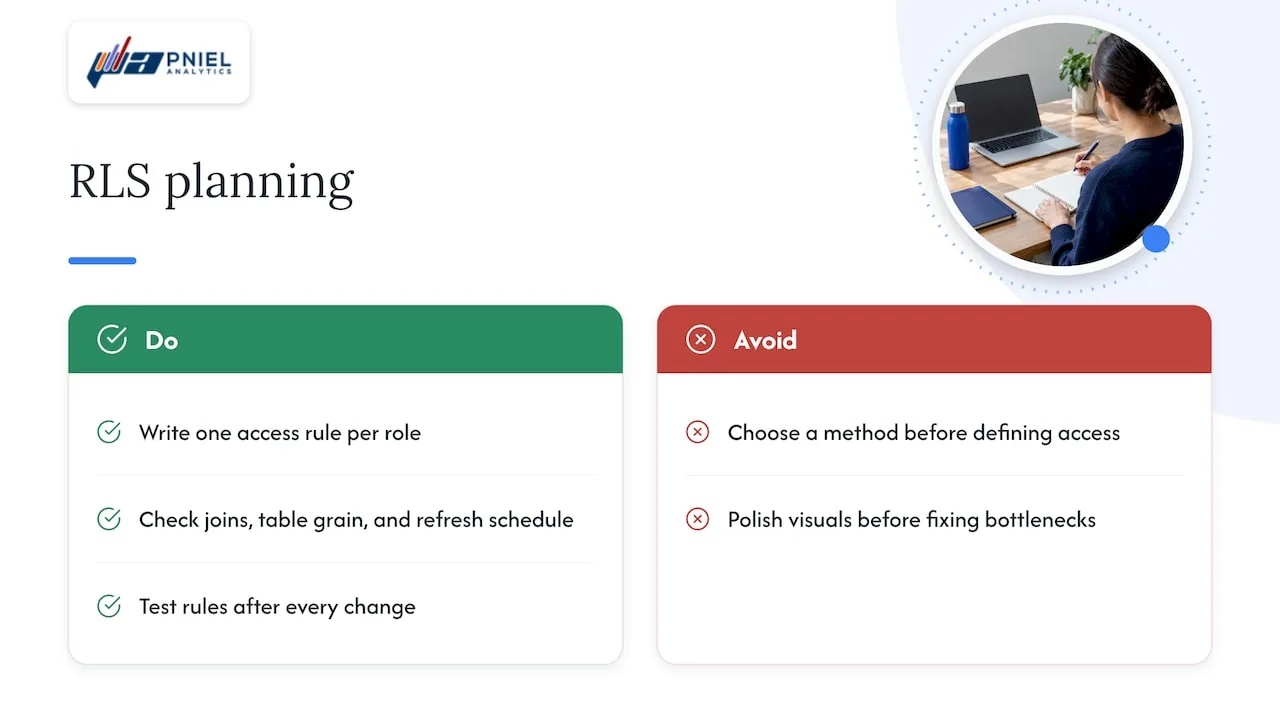
We also look at the data flow before the filter. A secure dashboard that takes a minute to load will be abandoned, and people will export to spreadsheets. That defeats the purpose. So we check the joins, the grain of the entitlement table and the refresh schedule early, and we fix bottlenecks before we polish the visuals.
For most mid sized organizations with Data Management, we lean toward data policies, since they take the risk out of each author’s hands. Without it, we use dynamic filters on a separately published data source, with permissions locked down and a hidden entitlement table. Either way, we hand your team a short test script so they can confirm the rules after every change.
— Frederick
Who needs this most
RLS comes up in every sector, but a few cases are especially sensitive:
- Healthcare teams tracking patient outcomes, where a unit should see only its own patients.
- Banks and finance teams, where a branch or desk should see only its own books.
- Schools, where each campus sees its own student data.
- Non-profits, where a program lead sees one campaign and the board sees everything.
- Manufacturers, where plant managers see their site and executives see the network.
In each case the rule is simple to say and easy to get wrong in the build. A short review before launch is cheaper than a data exposure afterward.
Get help with your Tableau security model
If you want RLS built, reviewed or repaired, our Tableau consulting team designs entitlement models, builds secure data sources and tunes slow dashboards. For the wider picture, see our data strategy and governance service. You can also look at our featured Tableau dashboards to see our work, or book a free assessment and we will review your current setup.
If your dashboards sit inside a portal, our article on authentication patterns for embedded Tableau is the next read.
FAQ
What is row level security used for?
It restricts the rows of data each person sees in a view. Companies use it so one dashboard can serve many roles, such as regions, branches or departments, without separate copies. It protects sensitive data while keeping reporting in one place.
What is the difference between RLS and Tableau permissions?
Permissions control access to content and features, such as whether you can open a workbook or download data. RLS controls which rows appear once you are in the view. A secure setup uses both, and weak permissions can undo a good filter.
Which RLS method should I pick?
Use manual user filters for one small workbook. Use dynamic filters with an entitlement table when several workbooks share a data source. Use data policies on virtual connections if you have Data Management and want one central rule enforced on every query.
Can I send data alerts from a secured dashboard?
Yes, data-driven alerts work on dashboards and views in Tableau Cloud or Tableau Server, and can go out by email, site notification or Slack. Check what each recipient sees when they open the link, using a non-admin account, before you add them.
Sources
- RLS Best Practices for Data Sources and Workbooks, Tableau
- Overview of Row-Level Security Options in Tableau
- Row-Level Security in the Database, Tableau
- Create a Data Policy for Row-Level Security, Tableau
- About Virtual Connections and Data Policies, Tableau
- Configure Permission and Content Access for Migrated Users, Tableau
- Send Data-Driven Alerts from Tableau Cloud or Tableau Server, Tableau
- Row Level Security in Tableau, TAR Solutions